> ## Documentation Index
> Fetch the complete documentation index at: https://docs.anchorbrowser.io/llms.txt
> Use this file to discover all available pages before exploring further.
# Embedded Browser Live UI
> Embed interactive browser sessions directly into your application
## Overview
Anchor Browser offers a live view feature that allows you to embed an interactive frame of a website as a web element. The `live_view_url` is received when creating a session.
## Headful Mode (Default)
Headful mode provides a single URL to view the full chrome view, including the address bar. This ensures the presented tab is always the active tab and provides the best user experience.
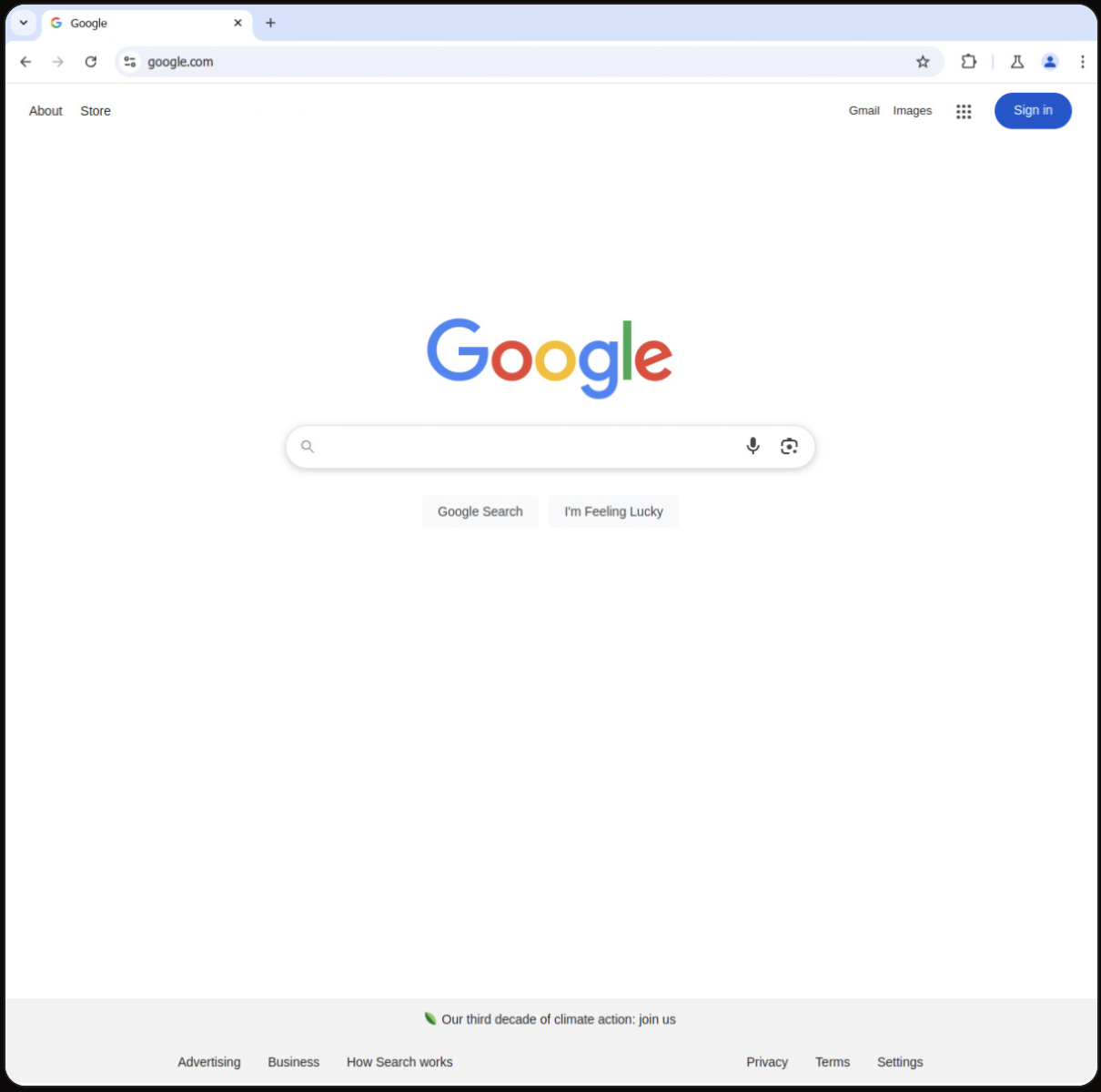 To create a browser in headful mode, simply [create a session](/sdk-reference/browser-sessions/start-browser-session):
```javascript node.js theme={null}
import AnchorBrowser from 'anchorbrowser';
// Initialize the client
const client = new AnchorBrowser({ apiKey: process.env.ANCHOR_API_KEY });
// For explicit headfull session configuration (optional, default to false)
const config = {
browser: {
headless: {
active: false
}
}
};
const session = await client.sessions.create(config);
const liveViewUrl = session.data.live_view_url;
console.log(`Live view URL: ${liveViewUrl}`);
```
```python python theme={null}
from anchorbrowser import Anchorbrowser
import os
# Initialize the client
client = Anchorbrowser(api_key=os.getenv("ANCHOR_API_KEY"))
# For explicit headfull session configuration (optional, default to False)
config = {
"headless": {
"active": False
}
}
session = client.sessions.create(browser=config)
print(f"Live view URL: {session.data.live_view_url}")
```
Then, use the `live_view_url` from the response to embed the live view directly into an iframe:
```html theme={null}
```
## Advanced Embedding Configuration
### Embed in Fullscreen View (Hide Navigation Bar)
To use the fullscreen view, replace the live view URL with the following:
```html theme={null}
```
### Disable Browser Interactivity
To prevent the end user from interacting with the browser, add the `style="pointer-events: none;"` attribute to the iframe:
```html theme={null}
```
This feature is available for both headful and headless modes.
### Single-Use Live View URL
To generate a live view URL that can only be used once, set `one_time_url` to `true`. After the first viewer connects and disconnects, the URL becomes permanently invalid.
```javascript node.js theme={null}
import AnchorBrowser from 'anchorbrowser';
const client = new AnchorBrowser({ apiKey: process.env.ANCHOR_API_KEY });
const session = await client.sessions.create({
session: {
live_view: {
one_time_url: true
}
}
});
const liveViewUrl = session.data.live_view_url;
console.log(`Single-use live view URL: ${liveViewUrl}`);
```
```python python theme={null}
from anchorbrowser import Anchorbrowser
import os
client = Anchorbrowser(api_key=os.getenv("ANCHOR_API_KEY"))
session = client.sessions.create(
session={
"live_view": {
"one_time_url": True
}
}
)
print(f"Single-use live view URL: {session.data.live_view_url}")
```
`one_time_url` requires a headful browser. It cannot be used with headless mode.
## Headless Mode
To obtain the browser live session URL in headless mode, start by [creating a session](/api-reference/browser-sessions/start-browser-session):
```javascript node.js theme={null}
import AnchorBrowser from 'anchorbrowser';
// Initialize the client
const client = new AnchorBrowser({ apiKey: process.env.ANCHOR_API_KEY });
const config = {
browser: {
headless: {
active: true
}
}
};
const session = await client.sessions.create(config);
const liveViewUrl = session.data.live_view_url;
console.log(`Live view URL: ${liveViewUrl}`);
```
```python python theme={null}
from anchorbrowser import Anchorbrowser
import os
# Initialize the client
client = Anchorbrowser(api_key=os.getenv("ANCHOR_API_KEY"))
config = {
"headless": {
"active": True
}
}
session = client.sessions.create(browser=config)
print(f"Live view URL: {session.data.live_view_url}")
```
To create a browser in headful mode, simply [create a session](/sdk-reference/browser-sessions/start-browser-session):
```javascript node.js theme={null}
import AnchorBrowser from 'anchorbrowser';
// Initialize the client
const client = new AnchorBrowser({ apiKey: process.env.ANCHOR_API_KEY });
// For explicit headfull session configuration (optional, default to false)
const config = {
browser: {
headless: {
active: false
}
}
};
const session = await client.sessions.create(config);
const liveViewUrl = session.data.live_view_url;
console.log(`Live view URL: ${liveViewUrl}`);
```
```python python theme={null}
from anchorbrowser import Anchorbrowser
import os
# Initialize the client
client = Anchorbrowser(api_key=os.getenv("ANCHOR_API_KEY"))
# For explicit headfull session configuration (optional, default to False)
config = {
"headless": {
"active": False
}
}
session = client.sessions.create(browser=config)
print(f"Live view URL: {session.data.live_view_url}")
```
Then, use the `live_view_url` from the response to embed the live view directly into an iframe:
```html theme={null}
```
## Advanced Embedding Configuration
### Embed in Fullscreen View (Hide Navigation Bar)
To use the fullscreen view, replace the live view URL with the following:
```html theme={null}
```
### Disable Browser Interactivity
To prevent the end user from interacting with the browser, add the `style="pointer-events: none;"` attribute to the iframe:
```html theme={null}
```
This feature is available for both headful and headless modes.
### Single-Use Live View URL
To generate a live view URL that can only be used once, set `one_time_url` to `true`. After the first viewer connects and disconnects, the URL becomes permanently invalid.
```javascript node.js theme={null}
import AnchorBrowser from 'anchorbrowser';
const client = new AnchorBrowser({ apiKey: process.env.ANCHOR_API_KEY });
const session = await client.sessions.create({
session: {
live_view: {
one_time_url: true
}
}
});
const liveViewUrl = session.data.live_view_url;
console.log(`Single-use live view URL: ${liveViewUrl}`);
```
```python python theme={null}
from anchorbrowser import Anchorbrowser
import os
client = Anchorbrowser(api_key=os.getenv("ANCHOR_API_KEY"))
session = client.sessions.create(
session={
"live_view": {
"one_time_url": True
}
}
)
print(f"Single-use live view URL: {session.data.live_view_url}")
```
`one_time_url` requires a headful browser. It cannot be used with headless mode.
## Headless Mode
To obtain the browser live session URL in headless mode, start by [creating a session](/api-reference/browser-sessions/start-browser-session):
```javascript node.js theme={null}
import AnchorBrowser from 'anchorbrowser';
// Initialize the client
const client = new AnchorBrowser({ apiKey: process.env.ANCHOR_API_KEY });
const config = {
browser: {
headless: {
active: true
}
}
};
const session = await client.sessions.create(config);
const liveViewUrl = session.data.live_view_url;
console.log(`Live view URL: ${liveViewUrl}`);
```
```python python theme={null}
from anchorbrowser import Anchorbrowser
import os
# Initialize the client
client = Anchorbrowser(api_key=os.getenv("ANCHOR_API_KEY"))
config = {
"headless": {
"active": True
}
}
session = client.sessions.create(browser=config)
print(f"Live view URL: {session.data.live_view_url}")
```
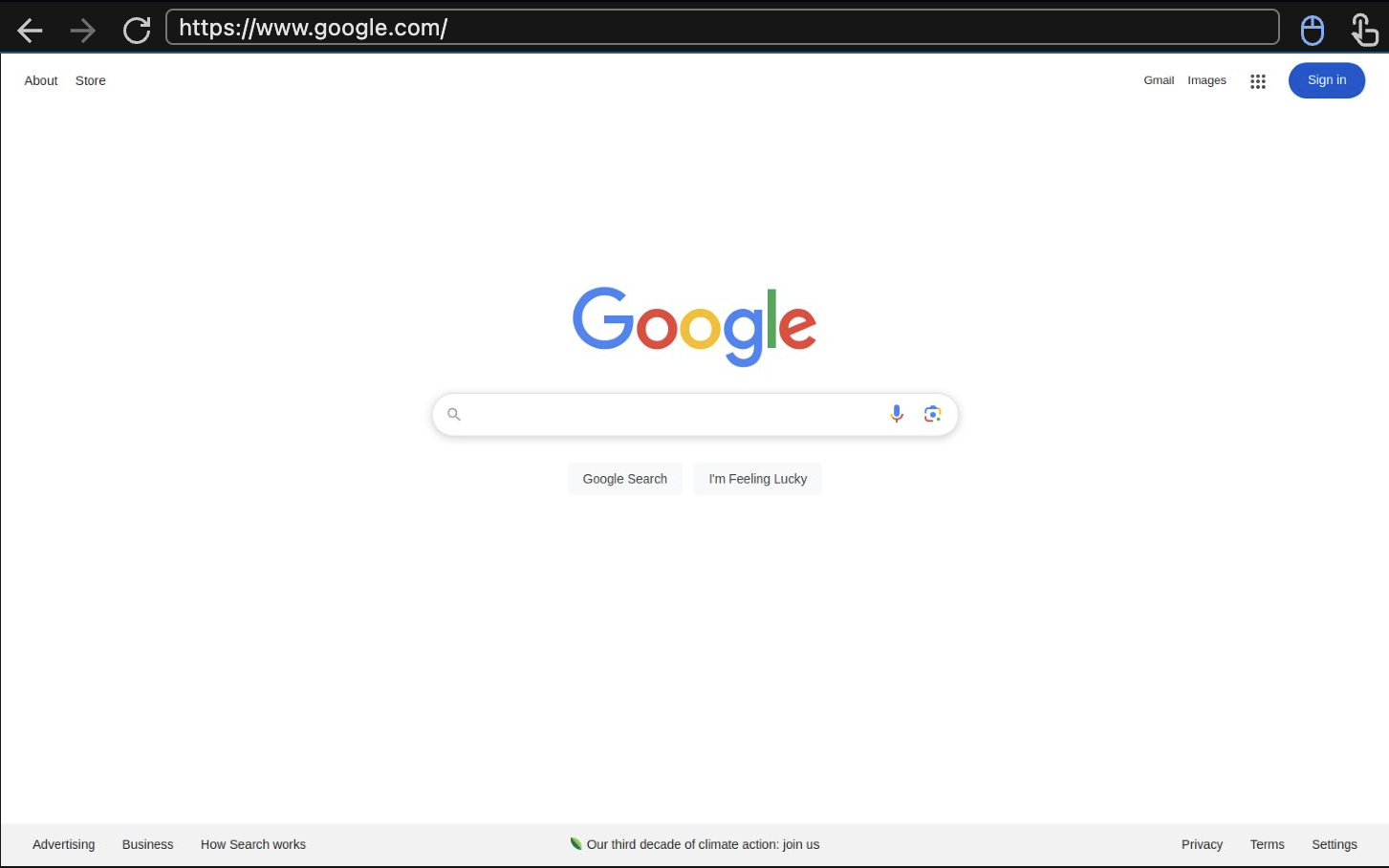 The live\_view\_url currently points to the browser default first page.
Then, use the **create-session** response to embed the live view URL directly into an iframe:
```html theme={null}
```
The live\_view\_url currently points to the browser default first page.
Then, use the **create-session** response to embed the live view URL directly into an iframe:
```html theme={null}
```