> ## Documentation Index
> Fetch the complete documentation index at: https://docs.anchorbrowser.io/llms.txt
> Use this file to discover all available pages before exploring further.
# MCP - Hosted Version
> Use Anchor with Model Context Protocol (MCP) in your preferred agentic tools via our hosted service
 ## Overview
Anchor provides a **hosted** Model Context Protocol (MCP) integration, allowing you to use browser automation directly from your preferred AI tools without any local setup. Our hosted MCP server runs on our infrastructure and is available to all users with an Anchor API key.
This enables seamless browser control from Cursor, VS Code, Claude, ChatGPT, and other MCP-compatible tools without managing any local dependencies.
## What is MCP?
Model Context Protocol (MCP) is an open standard that allows AI assistants to interact with external tools and data sources.
In our case, it enables AI-powered tools to access and control our browser automation capabilities directly within your IDE, agent apps, or CI/CD pipelines.
## Hosted vs Self-Hosted
Our **hosted MCP service** provides:
* ✅ Zero setup - just add your API key
* ✅ Always up-to-date with latest features
* ✅ Managed infrastructure and updates
* ✅ Built-in scaling and reliability
* ✅ Direct integration with Anchor's cloud browsers
For advanced customization needs, see our [Open Source MCP Server](/advanced/mcp-open-source) documentation.
## Setup in Cursor
Other MCP-compatible tools follow about the same pattern.
The MCP server runs on our servers ([https://api.anchorbrowser.io/mcp](https://api.anchorbrowser.io/mcp)), and is available to all users providing their Anchor API Key.
### Configure MCP in Cursor
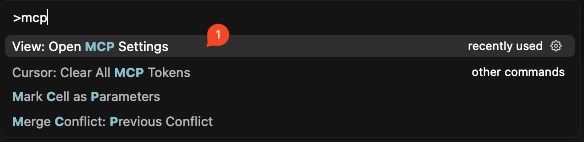
Press Command+Shift+P (Mac) or Ctrl+Shift+P (Linux/Windows) and select "Open MCP Configuration File"
## Overview
Anchor provides a **hosted** Model Context Protocol (MCP) integration, allowing you to use browser automation directly from your preferred AI tools without any local setup. Our hosted MCP server runs on our infrastructure and is available to all users with an Anchor API key.
This enables seamless browser control from Cursor, VS Code, Claude, ChatGPT, and other MCP-compatible tools without managing any local dependencies.
## What is MCP?
Model Context Protocol (MCP) is an open standard that allows AI assistants to interact with external tools and data sources.
In our case, it enables AI-powered tools to access and control our browser automation capabilities directly within your IDE, agent apps, or CI/CD pipelines.
## Hosted vs Self-Hosted
Our **hosted MCP service** provides:
* ✅ Zero setup - just add your API key
* ✅ Always up-to-date with latest features
* ✅ Managed infrastructure and updates
* ✅ Built-in scaling and reliability
* ✅ Direct integration with Anchor's cloud browsers
For advanced customization needs, see our [Open Source MCP Server](/advanced/mcp-open-source) documentation.
## Setup in Cursor
Other MCP-compatible tools follow about the same pattern.
The MCP server runs on our servers ([https://api.anchorbrowser.io/mcp](https://api.anchorbrowser.io/mcp)), and is available to all users providing their Anchor API Key.
### Configure MCP in Cursor
Press Command+Shift+P (Mac) or Ctrl+Shift+P (Linux/Windows) and select "Open MCP Configuration File"
 Click on "Add Custom MCP" or "New MCP Server" if you already have some pre-configured.
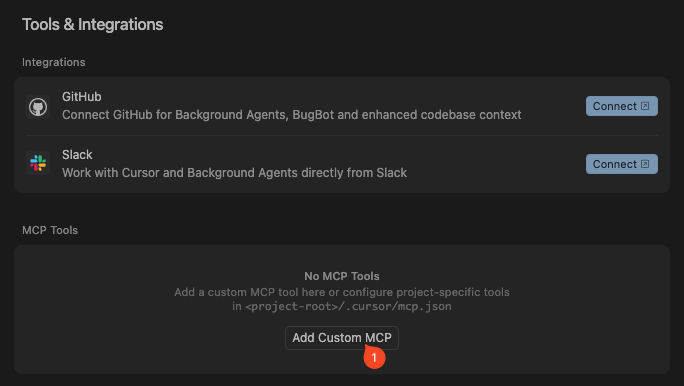 Add inside the `mcpServers` object the following:
```json theme={null}
"Anchor Browser Agent": {
"url": "https://api.anchorbrowser.io/mcp",
"headers": {
"anchor-api-key": "YOUR_ANCHOR_API_KEY"
}
}
```
If you don't have your Anchor API key yet, you can get it from [Anchor UI](https://app.anchorbrowser.io/api-keys).
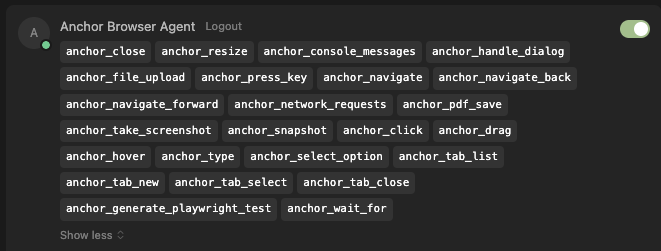
You should now see Anchor MCP server in the list of MCP servers in Cursor. It should say '24 tools enabled'. If you don't see it, disable and re-enable Anchor MCP server, or wait a little longer.
## Setup in VS Code
Install the MCP extension for VS Code from the marketplace.
Add to your VS Code MCP configuration file:
```json theme={null}
{
"mcpServers": {
"anchor-browser": {
"url": "https://api.anchorbrowser.io/mcp",
"headers": {
"anchor-api-key": "YOUR_ANCHOR_API_KEY"
}
}
}
}
```
Restart VS Code to load the new MCP server configuration.
## Setup in Claude Desktop
Open Claude Desktop's configuration file (`claude_desktop_config.json`).
Add the following to your configuration:
```json theme={null}
{
"mcpServers": {
"anchor-browser": {
"url": "https://api.anchorbrowser.io/mcp",
"headers": {
"anchor-api-key": "YOUR_ANCHOR_API_KEY"
}
}
}
}
```
Restart Claude Desktop to apply the configuration.
# Usage
Once configured, you can use Anchor Browser directly in your conversations with your AI assistant.
## Available Tools
The hosted MCP integration provides access to all main Anchor capabilities:
Add inside the `mcpServers` object the following:
```json theme={null}
"Anchor Browser Agent": {
"url": "https://api.anchorbrowser.io/mcp",
"headers": {
"anchor-api-key": "YOUR_ANCHOR_API_KEY"
}
}
```
If you don't have your Anchor API key yet, you can get it from [Anchor UI](https://app.anchorbrowser.io/api-keys).
You should now see Anchor MCP server in the list of MCP servers in Cursor. It should say '24 tools enabled'. If you don't see it, disable and re-enable Anchor MCP server, or wait a little longer.
## Setup in VS Code
Install the MCP extension for VS Code from the marketplace.
Add to your VS Code MCP configuration file:
```json theme={null}
{
"mcpServers": {
"anchor-browser": {
"url": "https://api.anchorbrowser.io/mcp",
"headers": {
"anchor-api-key": "YOUR_ANCHOR_API_KEY"
}
}
}
}
```
Restart VS Code to load the new MCP server configuration.
## Setup in Claude Desktop
Open Claude Desktop's configuration file (`claude_desktop_config.json`).
Add the following to your configuration:
```json theme={null}
{
"mcpServers": {
"anchor-browser": {
"url": "https://api.anchorbrowser.io/mcp",
"headers": {
"anchor-api-key": "YOUR_ANCHOR_API_KEY"
}
}
}
}
```
Restart Claude Desktop to apply the configuration.
# Usage
Once configured, you can use Anchor Browser directly in your conversations with your AI assistant.
## Available Tools
The hosted MCP integration provides access to all main Anchor capabilities:
 ### Test Generator Example
```
- You are a playwright test generator.
- You are given a scenario and you need to generate a playwright test for it.
- DO NOT generate test code based on the scenario alone.
- DO run steps one by one using the tools provided by the Anchor Browser Agent MCP.
- Only after all steps are completed, emit a Playwright TypeScript test that uses @playwright/test based on message history
- Save generated test file in the tests directory
- Execute the test file and iterate until the test passes
Generate a Playwright test for the following scenario:
1. Navigate to https://www.imdb.com/
2. search for 'Garfield'
3. return the director of the last movie
```
That is the generated test file:
```js theme={null}
import { test, expect } from '@playwright/test';
test('Find director of the last Garfield movie', async ({ page }) => {
// Step 1: Navigate to IMDB
await page.goto('https://www.imdb.com/');
// Verify we're on the IMDB homepage
await expect(page).toHaveTitle(/IMDb/);
// Step 2: Search for 'Garfield'
// Click on the search box
await page.getByTestId('suggestion-search').click();
// Type 'Garfield' into the search box
await page.getByTestId('suggestion-search').fill('Garfield');
// Submit the search
await page.getByRole('button', { name: 'Submit search' }).click();
// Verify we're on the search results page
await expect(page).toHaveURL(/\/find\/\?q=Garfield/);
await expect(page).toHaveTitle(/Find - IMDb/);
// Step 3: Click on the most recent Garfield movie (The Garfield Movie 2024)
await page.getByRole('link', { name: 'The Garfield Movie' }).click();
// Verify we're on the movie page
await expect(page).toHaveURL(/\/title\/tt5779228/);
await expect(page).toHaveTitle(/The Garfield Movie \(2024\)/);
// Step 4: Extract the director information
// The director information is displayed in the main content area
const directorElement = page.locator('text=Director').locator('..').locator('a').first();
// Verify the director is Mark Dindal
await expect(directorElement).toHaveText('Mark Dindal');
// Log the director name for verification
const directorName = await directorElement.textContent();
console.log(`Director of The Garfield Movie (2024): ${directorName}`);
// Assert the expected result
expect(directorName).toBe('Mark Dindal');
});
```
## Programmatic Usage (Python SDK)
You can also use the hosted MCP service programmatically in your Python applications using the MCP client library:
### Installation
```bash theme={null}
pip install mcp
```
### Basic Example
```python theme={null}
import asyncio
from mcp.client.streamable_http import streamablehttp_client
from mcp import ClientSession
async def list_tools():
async with streamablehttp_client(
url="https://api.anchorbrowser.io/mcp",
headers={"anchor-api-key": "sk-your-key"}
) as (
read_stream,
write_stream,
_,
):
async with ClientSession(read_stream, write_stream) as session:
await session.initialize()
tools = await session.list_tools()
for tool in tools.tools:
print(f"{tool.name}: {getattr(tool, 'description', '')}")
asyncio.run(list_tools())
```
## CI/CD Integration
The hosted MCP service works in CI/CD environments without requiring local browser installations:
```yaml theme={null}
# GitHub Actions example
name: AI Browser Testing
on: [push, pull_request]
jobs:
test:
runs-on: ubuntu-latest
steps:
- uses: actions/checkout@v3
- name: Run AI tests
env:
ANCHOR_API_KEY: ${{ secrets.ANCHOR_API_KEY }}
run: |
python ai_test_runner.py
```
## Getting Help
If you encounter issues with the hosted MCP integration:
1. **Check API Key**: Ensure your API key is valid
2. **Restart MCP Client**: Disable and re-enable the MCP server in your client
3. **Contact Support**: Reach out at [support@anchorbrowser.io](mailto:support@anchorbrowser.io)
## Migration from Self-Hosted
Moving from a self-hosted MCP server to our hosted service:
1. **Update Configuration**: Change your MCP client to use `https://api.anchorbrowser.io/mcp`
2. **Add API Key**: Include your Anchor API key in the headers
3. **Remove Local Dependencies**: Uninstall local MCP server and dependencies
4. **Test Integration**: Verify all your existing MCP workflows still work
### Test Generator Example
```
- You are a playwright test generator.
- You are given a scenario and you need to generate a playwright test for it.
- DO NOT generate test code based on the scenario alone.
- DO run steps one by one using the tools provided by the Anchor Browser Agent MCP.
- Only after all steps are completed, emit a Playwright TypeScript test that uses @playwright/test based on message history
- Save generated test file in the tests directory
- Execute the test file and iterate until the test passes
Generate a Playwright test for the following scenario:
1. Navigate to https://www.imdb.com/
2. search for 'Garfield'
3. return the director of the last movie
```
That is the generated test file:
```js theme={null}
import { test, expect } from '@playwright/test';
test('Find director of the last Garfield movie', async ({ page }) => {
// Step 1: Navigate to IMDB
await page.goto('https://www.imdb.com/');
// Verify we're on the IMDB homepage
await expect(page).toHaveTitle(/IMDb/);
// Step 2: Search for 'Garfield'
// Click on the search box
await page.getByTestId('suggestion-search').click();
// Type 'Garfield' into the search box
await page.getByTestId('suggestion-search').fill('Garfield');
// Submit the search
await page.getByRole('button', { name: 'Submit search' }).click();
// Verify we're on the search results page
await expect(page).toHaveURL(/\/find\/\?q=Garfield/);
await expect(page).toHaveTitle(/Find - IMDb/);
// Step 3: Click on the most recent Garfield movie (The Garfield Movie 2024)
await page.getByRole('link', { name: 'The Garfield Movie' }).click();
// Verify we're on the movie page
await expect(page).toHaveURL(/\/title\/tt5779228/);
await expect(page).toHaveTitle(/The Garfield Movie \(2024\)/);
// Step 4: Extract the director information
// The director information is displayed in the main content area
const directorElement = page.locator('text=Director').locator('..').locator('a').first();
// Verify the director is Mark Dindal
await expect(directorElement).toHaveText('Mark Dindal');
// Log the director name for verification
const directorName = await directorElement.textContent();
console.log(`Director of The Garfield Movie (2024): ${directorName}`);
// Assert the expected result
expect(directorName).toBe('Mark Dindal');
});
```
## Programmatic Usage (Python SDK)
You can also use the hosted MCP service programmatically in your Python applications using the MCP client library:
### Installation
```bash theme={null}
pip install mcp
```
### Basic Example
```python theme={null}
import asyncio
from mcp.client.streamable_http import streamablehttp_client
from mcp import ClientSession
async def list_tools():
async with streamablehttp_client(
url="https://api.anchorbrowser.io/mcp",
headers={"anchor-api-key": "sk-your-key"}
) as (
read_stream,
write_stream,
_,
):
async with ClientSession(read_stream, write_stream) as session:
await session.initialize()
tools = await session.list_tools()
for tool in tools.tools:
print(f"{tool.name}: {getattr(tool, 'description', '')}")
asyncio.run(list_tools())
```
## CI/CD Integration
The hosted MCP service works in CI/CD environments without requiring local browser installations:
```yaml theme={null}
# GitHub Actions example
name: AI Browser Testing
on: [push, pull_request]
jobs:
test:
runs-on: ubuntu-latest
steps:
- uses: actions/checkout@v3
- name: Run AI tests
env:
ANCHOR_API_KEY: ${{ secrets.ANCHOR_API_KEY }}
run: |
python ai_test_runner.py
```
## Getting Help
If you encounter issues with the hosted MCP integration:
1. **Check API Key**: Ensure your API key is valid
2. **Restart MCP Client**: Disable and re-enable the MCP server in your client
3. **Contact Support**: Reach out at [support@anchorbrowser.io](mailto:support@anchorbrowser.io)
## Migration from Self-Hosted
Moving from a self-hosted MCP server to our hosted service:
1. **Update Configuration**: Change your MCP client to use `https://api.anchorbrowser.io/mcp`
2. **Add API Key**: Include your Anchor API key in the headers
3. **Remove Local Dependencies**: Uninstall local MCP server and dependencies
4. **Test Integration**: Verify all your existing MCP workflows still work