> ## Documentation Index
> Fetch the complete documentation index at: https://docs.anchorbrowser.io/llms.txt
> Use this file to discover all available pages before exploring further.
# Session Recording
> Record browser sessions for debugging, analysis, and documentation
## Overview
Anchor Browser provides built-in session recording that allows you to capture and review browser sessions. This feature is invaluable for debugging automation workflows, analyzing user behavior, and creating documentation.
## How It Works
Anchor Browser automatically records browser sessions and creates an MP4 video file that captures the complete visual experience.
Recordings are accessible both through our API and the web UI (see below).
# SDK Usage
## Record a Session
Recording is enabled by default when creating a session.
Start a session using the [SDK](/quickstart/use-via-sdk), you can enable recording by setting:
`recording` -> `active` -> `true` in the request body.
```javascript node.js theme={null}
import AnchorBrowser from 'anchorbrowser';
(async () => {
const anchorClient = new AnchorBrowser({apiKey: process.env.ANCHOR_API_KEY});
const response = await anchorClient.sessions.create({
session: {
recording: {
active: true // Enable recording (default)
}
}
});
const sessionId = response.data.id
console.log("Session created:", response.data);
})().catch(console.error);
```
```python python theme={null}
import os
from anchorbrowser import Anchorbrowser
anchor_client = Anchorbrowser(api_key=os.getenv("ANCHOR_API_KEY"))
response = anchor_client.sessions.create(
session={
"recording": {
"active": True # Enable recording (default)
}
}
)
session_id = response.data.id
print("Session created:", session_id)
```
## Get Session Recordings
Retrieve recordings for a specific session:
```javascript node.js theme={null}
import AnchorBrowser from 'anchorbrowser';
(async () => {
const anchorClient = new AnchorBrowser({apiKey: process.env.ANCHOR_API_KEY});
const recordings = await anchorClient.sessions.recordings.list(sessionId);
console.log("Recordings:", recordings.data);
})().catch(console.error);
```
```python python theme={null}
import os
from anchorbrowser import Anchorbrowser
anchor_client = Anchorbrowser(api_key=os.getenv("ANCHOR_API_KEY"))
recordings = anchor_client.sessions.recordings.list(session_id)
print("Recordings:", recordings.data)
```
## Download Recording
Download a specific recording file:
```javascript node.js theme={null}
import AnchorBrowser from 'anchorbrowser';
import { writeFile } from 'node:fs/promises';
(async () => {
const anchorClient = new AnchorBrowser({apiKey: process.env.ANCHOR_API_KEY});
// const sessionId = 'your-session-id'; // Replace with actual session ID
const recording = await anchorClient.sessions.recordings.primary.get(sessionId);
// Save to file
const buffer = await recording.arrayBuffer();
await writeFile(`recording-${sessionId}.mp4`, Buffer.from(buffer));
console.log(`Recording saved as recording-${sessionId}.mp4`);
})().catch(console.error);
```
```python python theme={null}
import os
from anchorbrowser import Anchorbrowser
anchor_client = Anchorbrowser(api_key=os.getenv("ANCHOR_API_KEY"))
session_id = "your-session-id" # Replace with actual session ID
recording = anchor_client.sessions.recordings.primary.get(session_id)
# Save to file
with open(f"recording-{session_id}.mp4", "wb") as f:
for chunk in recording.iter_bytes(chunk_size=8192):
f.write(chunk)
print(f"Recording saved as recording-{session_id}.mp4")
```
## Delete Recording
Delete a specific recording from a session. Use `"primary"` as the recording ID to delete the primary recording.
```javascript node.js theme={null}
import AnchorBrowser from 'anchorbrowser';
(async () => {
const anchorClient = new AnchorBrowser({apiKey: process.env.ANCHOR_API_KEY});
const sessionId = 'your-session-id'; // Replace with actual session ID
const recordingId = 'primary'; // Or use a specific recording ID
const response = await anchorClient.sessions.recordings.delete(sessionId, recordingId);
console.log("Recording deleted:", response.data);
})().catch(console.error);
```
```python python theme={null}
import os
from anchorbrowser import Anchorbrowser
anchor_client = Anchorbrowser(api_key=os.getenv("ANCHOR_API_KEY"))
session_id = "your-session-id" # Replace with actual session ID
recording_id = "primary" # Or use a specific recording ID
response = anchor_client.sessions.recordings.delete(session_id, recording_id)
print("Recording deleted:", response.data)
```
```bash cURL theme={null}
curl -X DELETE \
https://api.anchorbrowser.io/v1/sessions/{session_id}/recordings/{recording_id} \
-H "anchor-api-key: $ANCHOR_API_KEY"
```
# Web UI Usage
## Create a Session
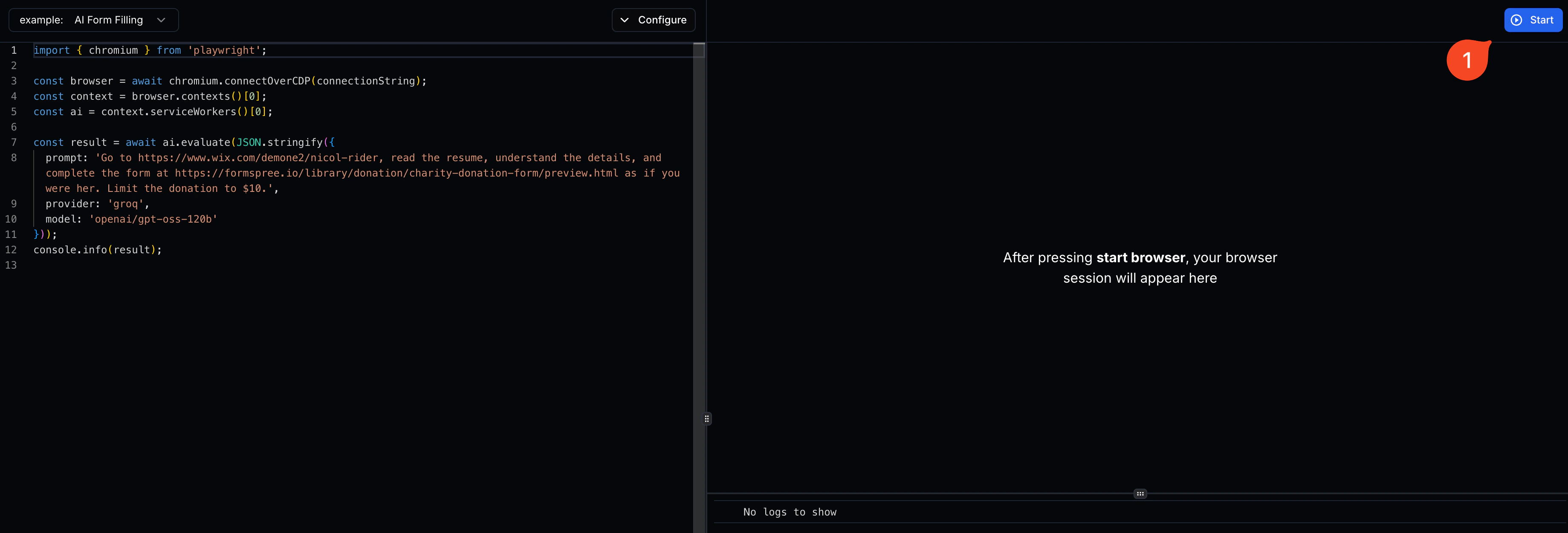
In order to create a session through the UI with recording enabled use the [playground](https://app.anchorbrowser.io/playground), it will be recorded by default.
 ## Session Recordings
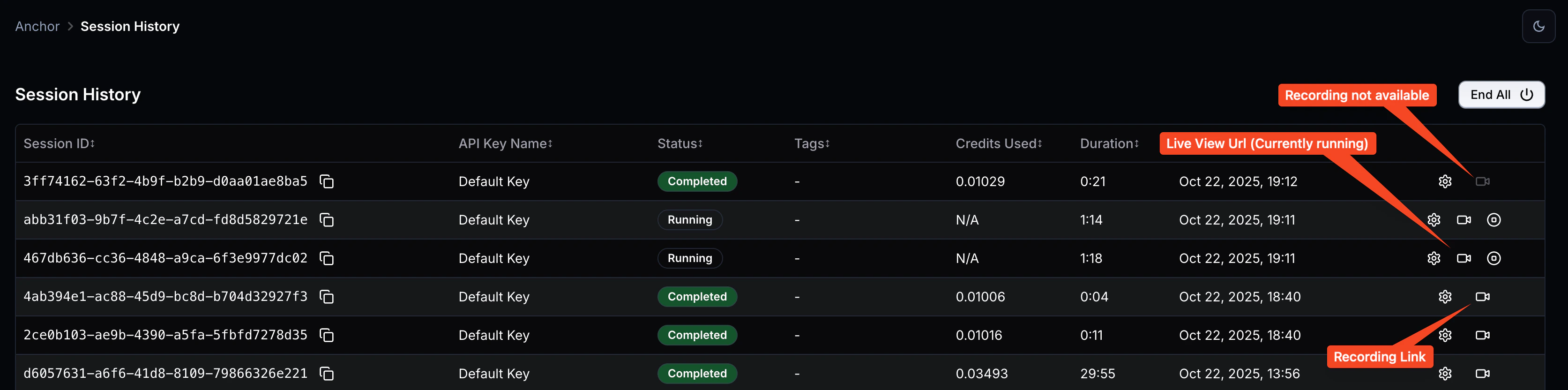
The Session History dashboard shows all sessions. Each session has a link to its recording.
If a session is still running, the link in the session history page will take you to the session's live view instead of the recording. Once the session ends, the link will point to the recording.
## Session Recordings
The Session History dashboard shows all sessions. Each session has a link to its recording.
If a session is still running, the link in the session history page will take you to the session's live view instead of the recording. Once the session ends, the link will point to the recording.
 ## Recording Playback
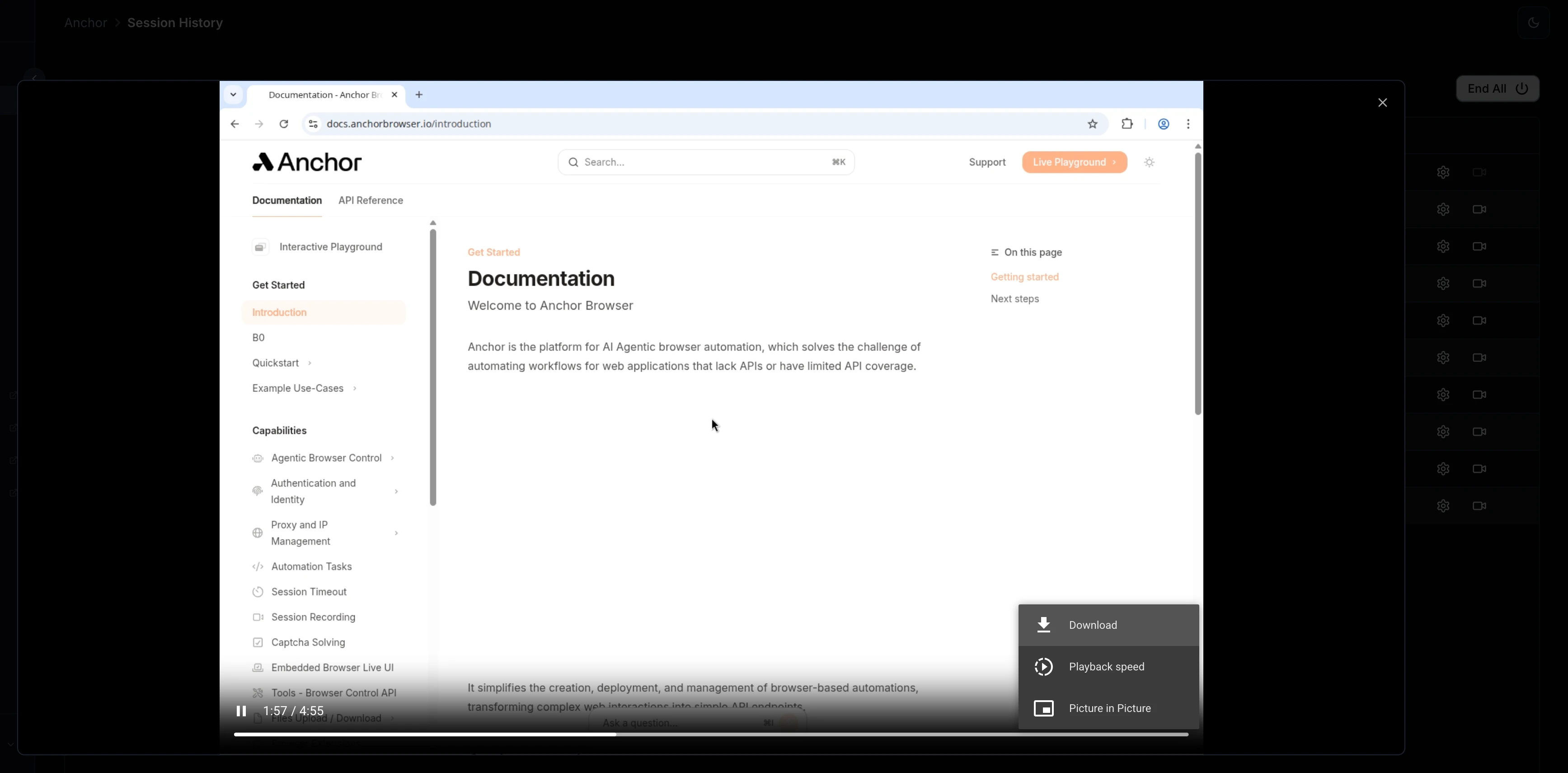
When you click on a session recording, the playback interface will be opened.
You can use it to view the recording, navigate through it, and download it as MP4 file.
## Recording Playback
When you click on a session recording, the playback interface will be opened.
You can use it to view the recording, navigate through it, and download it as MP4 file.