About n8n

n8n is an open-source workflow automation platform that lets you connect apps and services together to build powerful workflows — without writing code. The n8n-nodes-anchorbrowser community node brings Anchor Browser’s cloud browser automation into your n8n workflows. Use it to run AI-powered web tasks, manage browser sessions, execute Automation Tasks, and control the browser at the OS level — all from n8n’s visual builder.

Quick Start

1

Install the community node

The Anchor Browser node is a verified community node on n8n. Choose the installation method for your environment:
On n8n Cloud, install the node directly from the editor. Only instance owners and admins can install community nodes — once installed, all instance members can use it in their workflows.
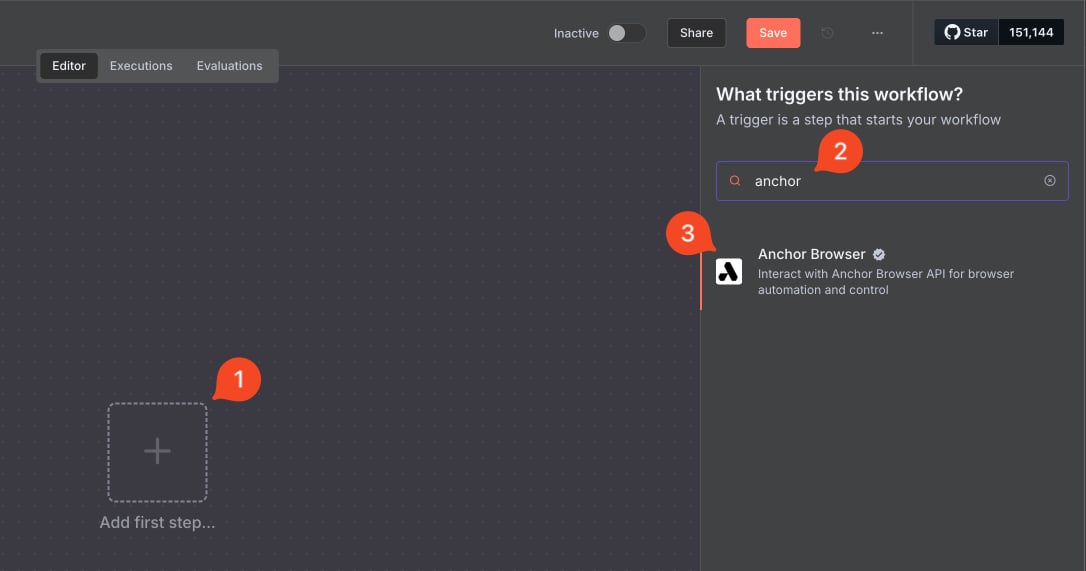
  1. Open a workflow and open the nodes panel (+ or N).
  2. Search for Anchor Browser. It appears under More from the community with a verified badge.
  3. Select the node, review the supported operations, then click Install.
If you do not see verified community nodes, the instance owner must enable them in the Cloud Admin Panel. See the n8n docs for details.
2

Connect your account

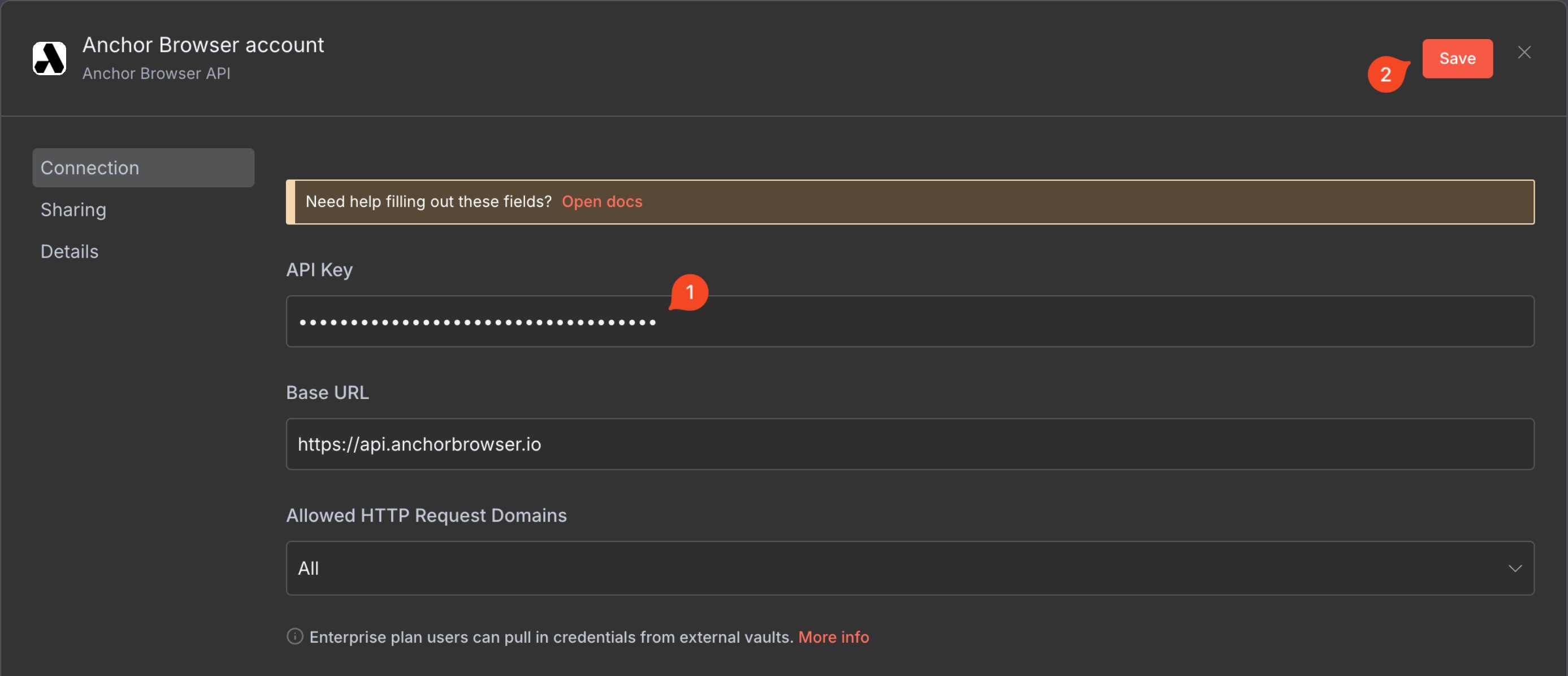
In n8n, go to Credentials and create a new Anchor Browser API credential. Enter your API key and base URL (default: https://api.anchorbrowser.io). You can create or copy a key from the API Keys page in the Anchor dashboard.Credentials configurationAfter saving, test the connection to confirm it succeeds before continuing.Credentials tested successfully
3

Add the Anchor Browser node

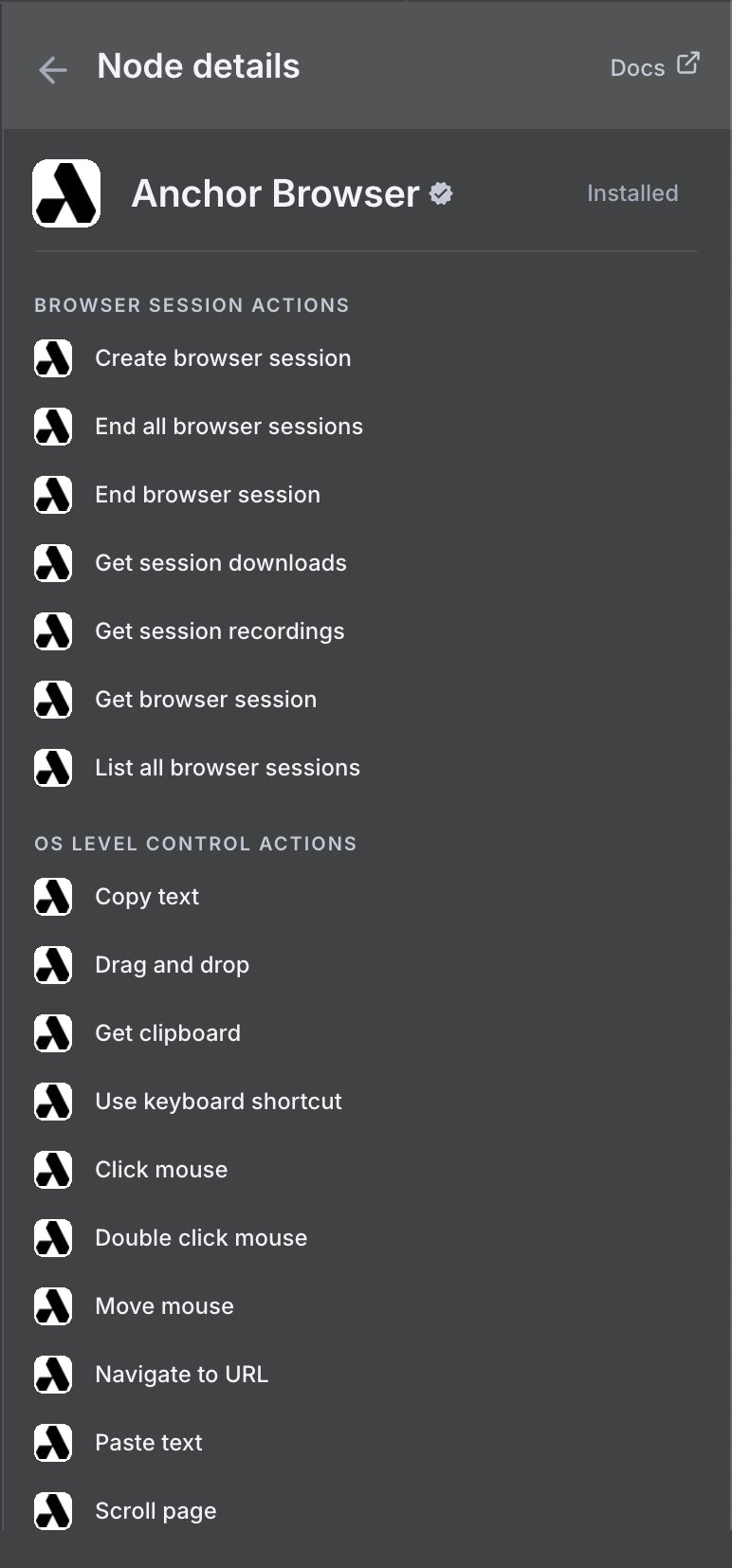
Create a new workflow and add the Anchor Browser node. Select the Resource and Operation that match your use case. For most agentic automations, start with Tool → Perform Web Task — see Tool operations below.Anchor Browser node when creating a new workflow
4

Configure and execute

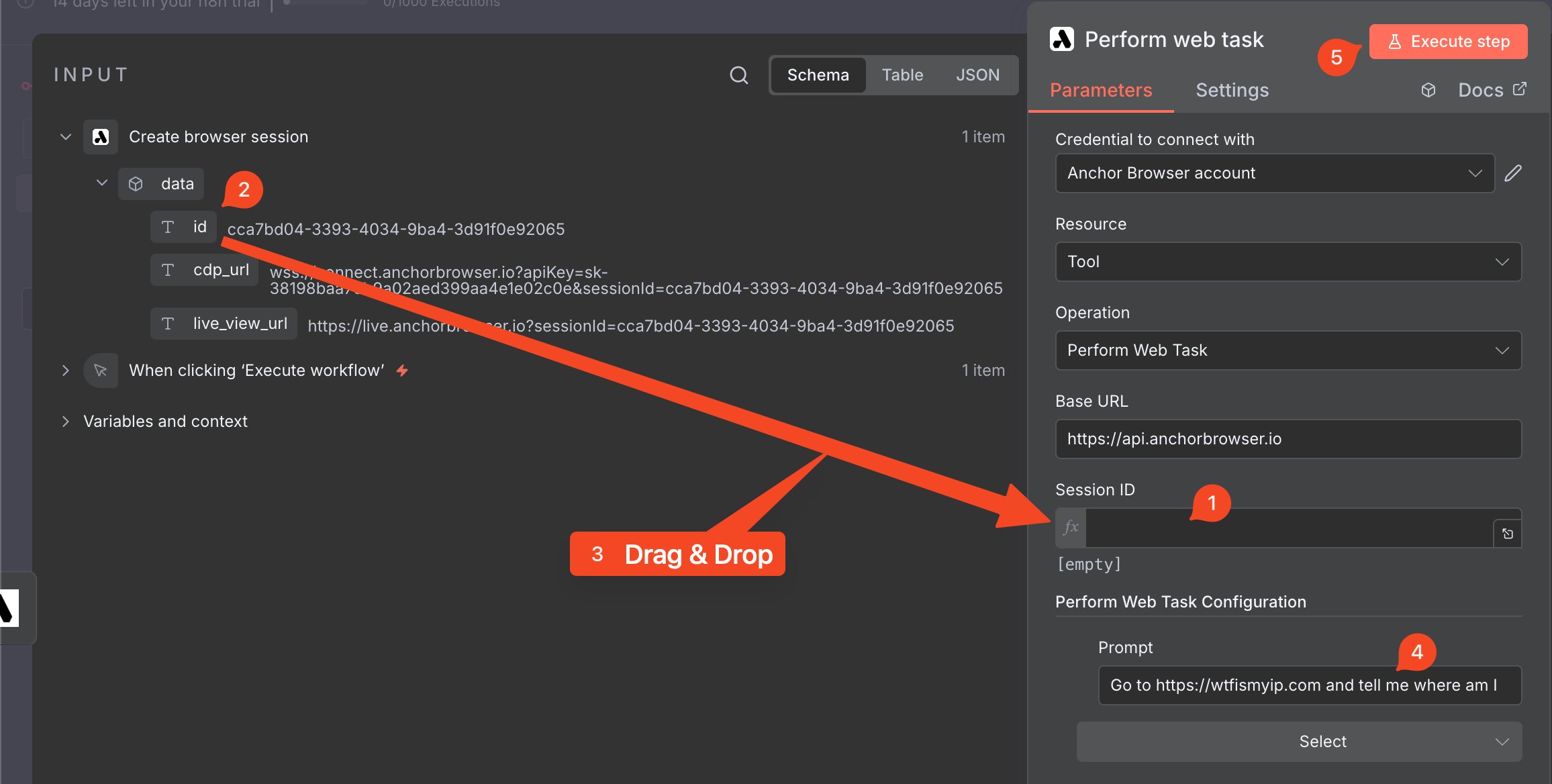
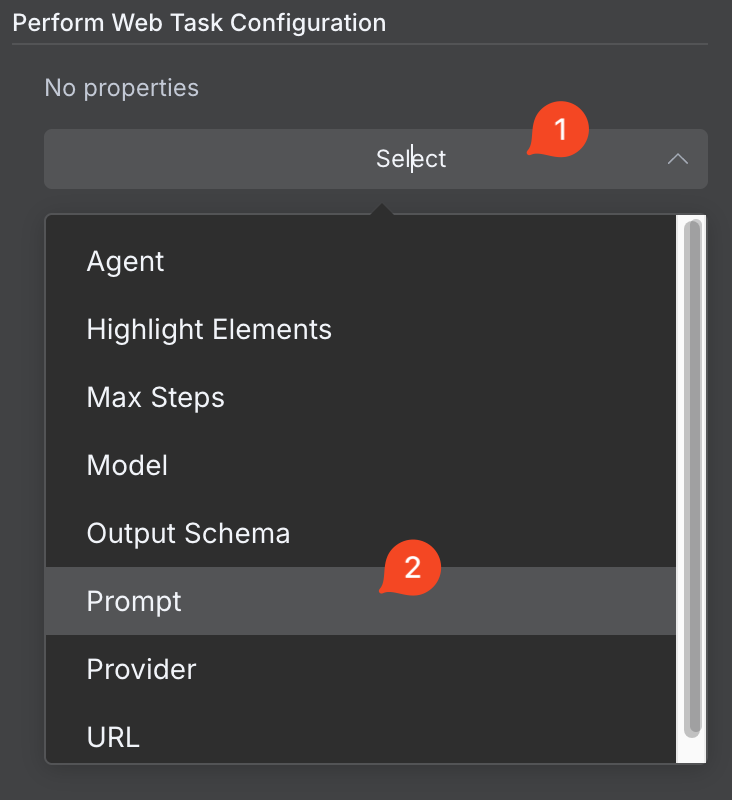
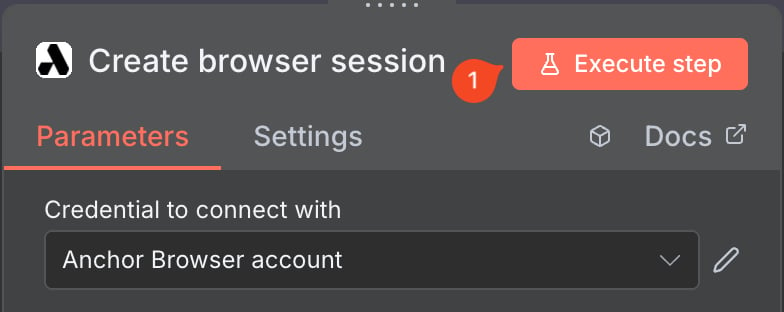
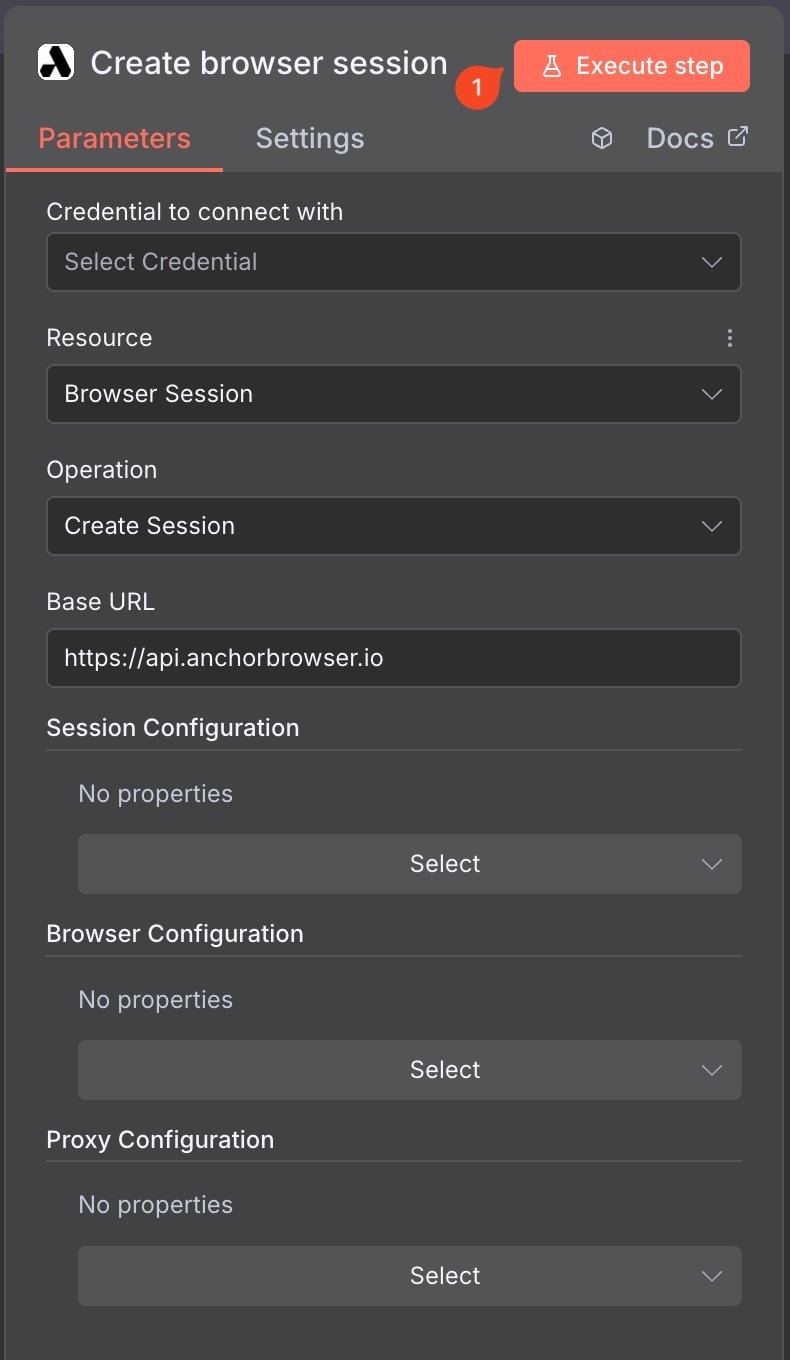
Fill in the required fields for your chosen operation, then run the step to confirm it works.Node configuration settingsFor AI-powered tasks, configure the prompt, URL or session ID, and agent settings. See AI Task Completion for details on agents, providers, and models.Task configuration settingsTask prompt configurationBasic Anchor Browser workflow
Available Operations

The node exposes operations across five resources: Tool, Browser Session, Task, OS Level Control, and Profile.

Tool operations

These operations use Anchor’s AI agents and browser tools to complete web tasks. You can provide either a Session ID to use an existing session, or a URL to let the system create a session automatically — making these operations ideal for quick, one-off tasks without manual session management. See AI Task Completion for configuration details such as agents, providers, and models.

Browser session operations

Manage cloud browser sessions and retrieve session artifacts.

Task management operations

Create, run, and manage Automation Tasks — reusable browser automation scripts you create in Anchor.

OS Level Control operations

Low-level browser control for multi-step workflows that operate on an existing session. Each operation requires a Session ID from Create Session or a previous step.

Profile operations


Common recipes

Download PDF files instead of opening the viewer

By default, the Create Session operation enables the in-browser PDF viewer. To download PDF files automatically instead, disable the viewer when creating the session. Add an Anchor Browser node and set Resource to Browser Session and Operation to Create Session. Open Browser Configuration and set PDF Viewer Active to false. After the PDF downloads, use Browser Session → Get Downloads with the same session ID to retrieve the file. See File Download for API details and P2P download options.

Getting Help

If you experience any issues with the Anchor Browser n8n node, contact our support team at support@anchorbrowser.io.