

Create from a prompt or demonstration
There are two ways to create a task:- Prompt — describe what the task should do in natural language (objective, start URL, steps, and expected output).
- Demonstration — perform the task once in a live browser while Anchor records your actions.
Demonstrate the task
During creation, choose to demonstrate the task manually. A live browser opens at your start URL. As you navigate, click, and fill forms, Anchor captures every event in the sidebar.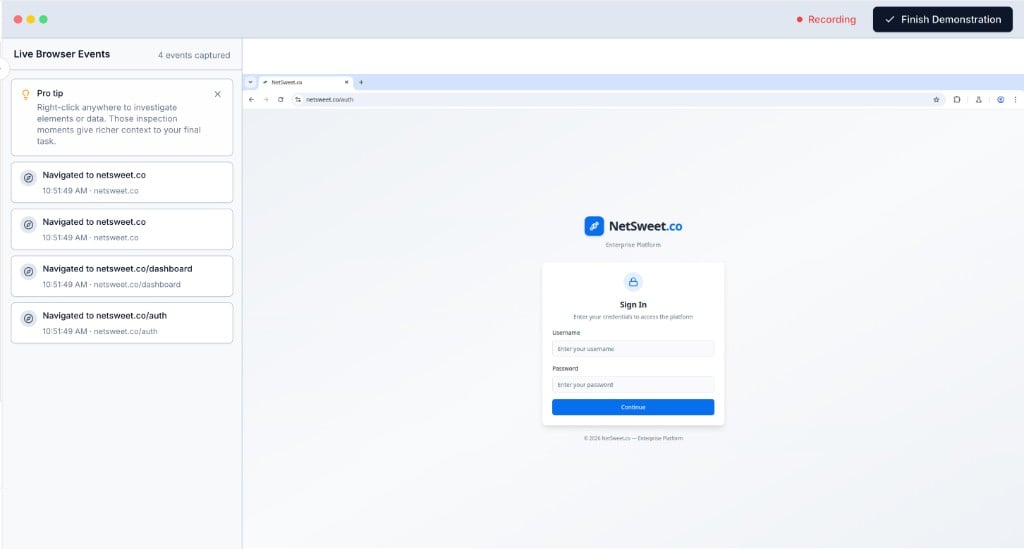
Perform the task in a live browser — Anchor records navigation, clicks, and form fills as you go
Describe it in a prompt
Prefer writing over clicking? Describe the task on the Task Definition step — what site to open, what to do, which values change between runs ({{report_name}}, {{email}}, and so on), and what to return. Anchor generates the workflow from your description.
See Creating a Task for a prompt template and examples.
The workflow page
The Workflow tab is where you understand and refine how a task actually works. Anchor compiles your prompt or demonstration into a graph of segments — each segment is a discrete step with its own behavior, inputs, and outputs.UI and Network steps run Playwright code first and can fall back to AI if that code fails. Logic steps never fall back. Agent steps are AI-only. See Code Tasks for the full schema reference.
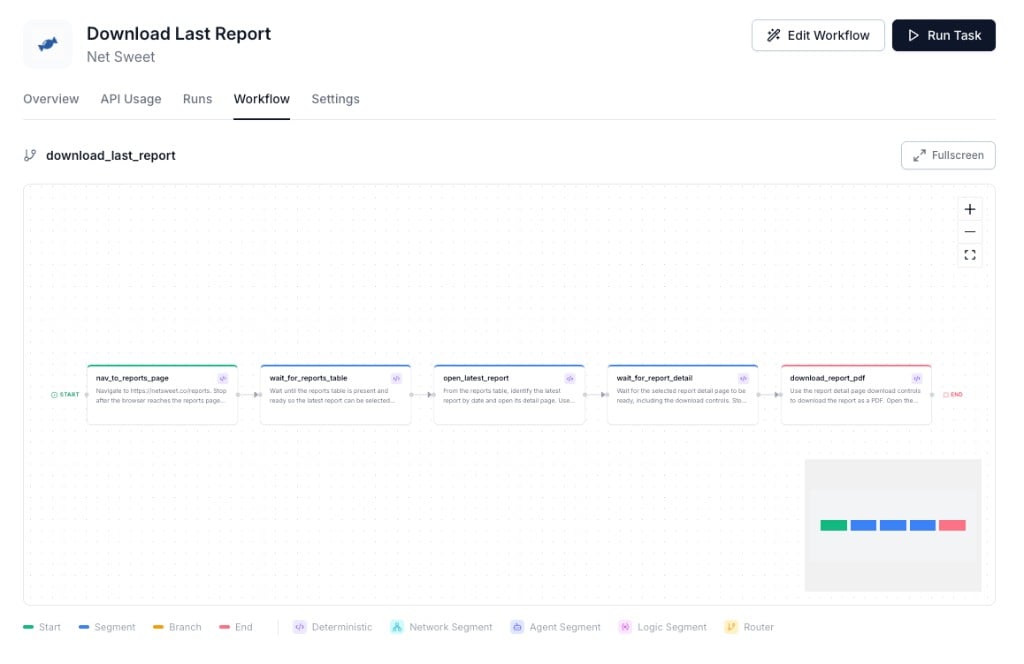
The Workflow tab shows every step in your automation — click a step to inspect it, or use Edit Workflow to change the task
Run a task
Starting a run opens a live execution view. Anchor launches a browser, authenticates if needed, and walks through each segment in order.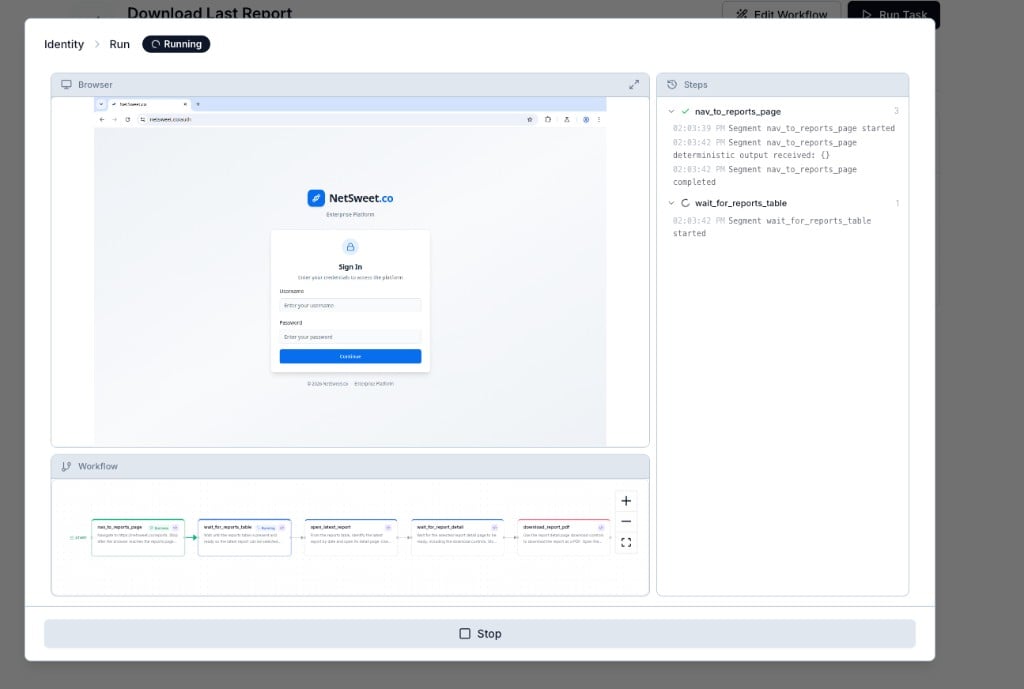
Watch the live browser, follow step-by-step logs, and see the workflow graph update as each step completes
- The live browser shows what Anchor is doing on the site right now.
- The steps panel streams per-segment logs with timestamps — expand any step to see when it started, completed, or hit an error.
- The workflow graph at the bottom highlights each segment as it runs: green for success, spinner for in progress.
View a run
Once a run finishes — or when you need to debug a past failure — open it from the Runs tab via View run. This is the primary tool for understanding what actually happened. The view-run page uses the same layout as the live run, but swaps the live browser for a session recording you can scrub through. Everything is tied to the workflow graph:- Replay what happened — watch the full browser session recording to see exactly what Anchor did on the page.
- Jump to a step — click any segment on the graph and the recording seeks to that moment. Pair this with the step logs on the right to pinpoint where things went wrong.
- Review inputs and output — see the values passed into the run and the structured data returned (or the error message if it failed).
- Spot AI fallback — runs where deterministic code failed but an agent recovered are tagged AI Fallback, so you know which steps are fragile.
- Check the attempts — a run that retried is tagged N attempts, with a per-attempt breakdown of status, duration, and browser session. See Retries.
Self-healing
Websites change. Buttons move, pages load slower, layouts shift. When you’re reviewing a run in View run, Anchor surfaces what went wrong and how to fix it. During a run — if a step’s deterministic code fails, Anchor retries it with an AI agent so the run can still finish. Runs that used this path are tagged AI Fallback. After a run — Anchor analyzes execution logs, browser actions, and page snapshots, then suggests a durable fix to the workflow itself. Need runs to stay strictly deterministic? Turn Allow AI in this task off under Settings — the step then fails with its underlying error instead of being retried. Self-healing still proposes a fix as a draft version for you to review. See Turning AI fallback off.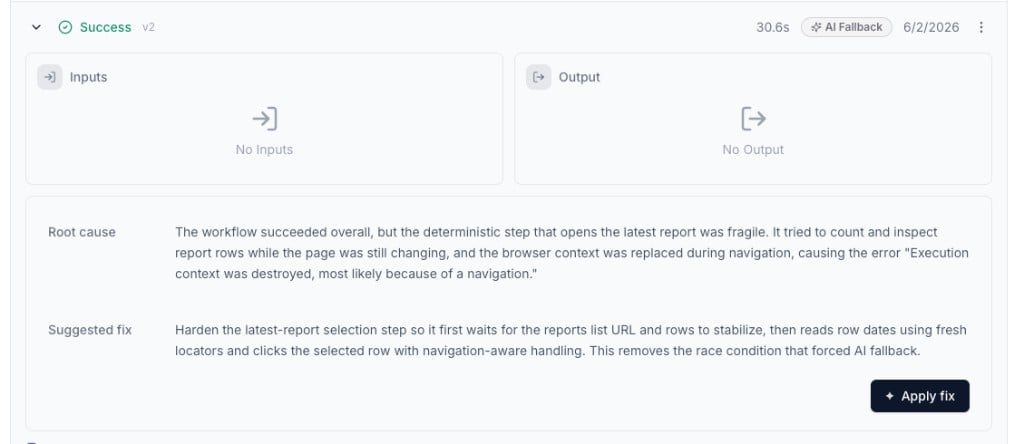
When a step needed AI fallback, Anchor explains what broke and offers a one-click fix
- Root cause — a plain-language explanation of why the deterministic step failed.
- Suggested fix — what Anchor recommends changing so the next run doesn’t need AI fallback.
- Apply fix — one click to update the workflow with the repair. Test the new version from the Workflow tab, then publish.
task.healed webhook event to get notified automatically. See Self-healing for the full technical details.
Next steps
Creating a Task
Create tasks from a prompt or demonstration, in the UI and via API.
Run a Task
Execute tasks with inputs, identity, and sync or async modes.
Self-healing
AI fallback during runs and automatic workflow repair after failures.
Task Examples
Browse ready-made tasks in the Anchor library.